Break by feature allows you to break your singular data into multiple sets. When you select a metric via Select Values, it creates the metric as a single unit depending upon the function you have used in the process. However, if you wish to break the data into individual variables or break the data as per certain variables, you can use Break By functions. It allows you to classify your data as per selected variables.
Functioning of Break By
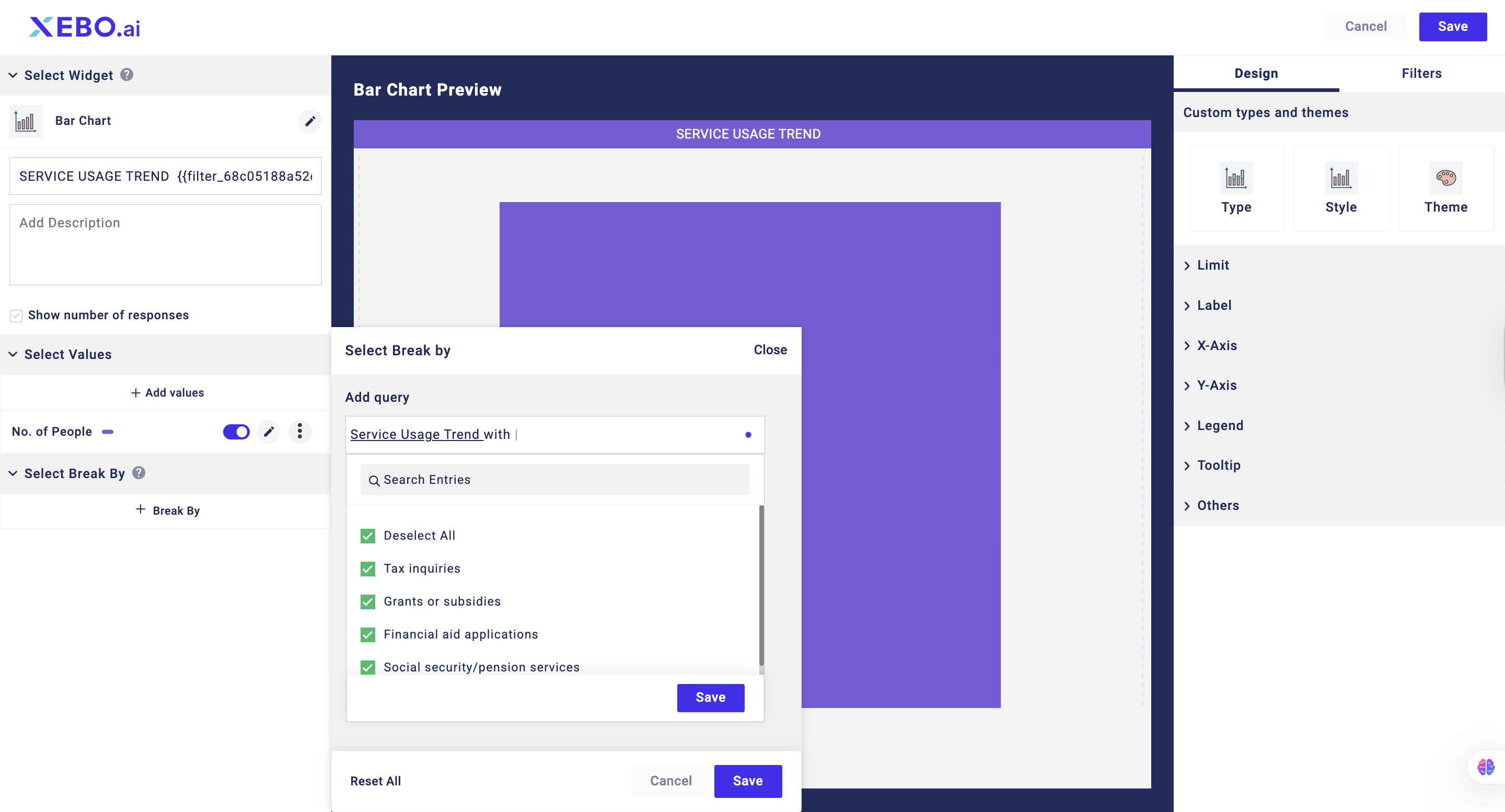
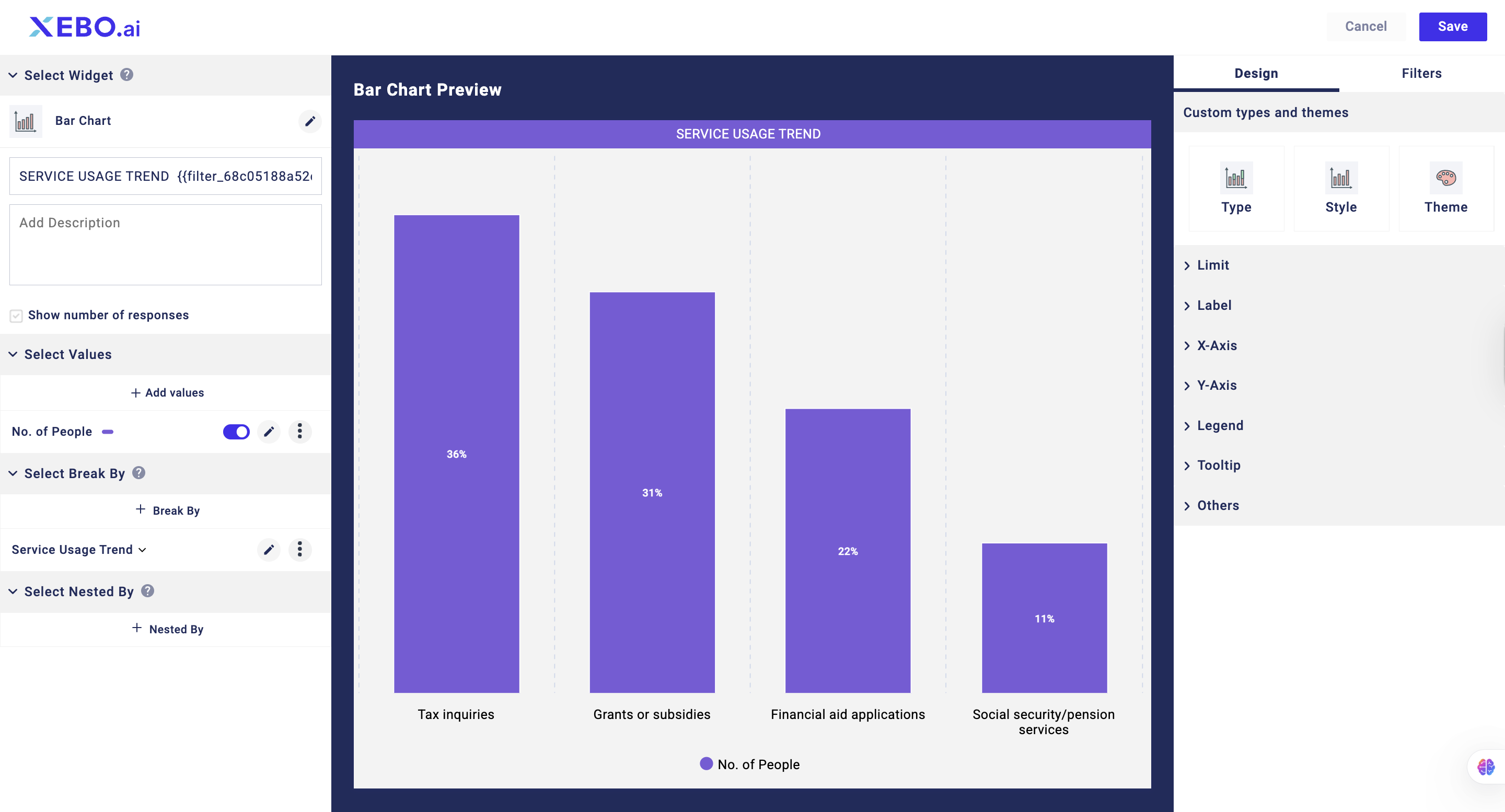
The Break By feature is used to gain deeper insights into survey data. When a single-choice question is selected as a metric with Count as the function, the system initially shows the overall number of responses received for that question. However, this total does not reveal how the responses are distributed among the available answer choices. By applying Break By, the data is automatically classified according to each answer option, allowing you to see the count and distribution of responses for every choice. This makes it easier to analyze patterns and understand respondent preferences in greater detail.We click on Break By, we select the question on the basis of which the current data would be classified. In this case, we will select the same question. Then we will select the answer choices on the basis of which the classification would be done.
To add a break by function, click on the +Break By Option and select the question
Click on Save and now you would see the same data being classified into different sets.
You can also use Combination Variable, Group Variable and Meta Data to Break By the Metric data.
Steps to adding Break By
Click on +Break By
Click on the box and select the field you wish to use to Break By the data.
Click on Individual choices
Click on Save
Note: You can apply multiple Break By by clicking on +Break By. This would classify and distribute the metric data on the basis of both the Break by sets. For example, if we use both the break by at once, it would look like this.
Options With Break By
When you apply a break by, you get some options to further manage and arrange your break by options.
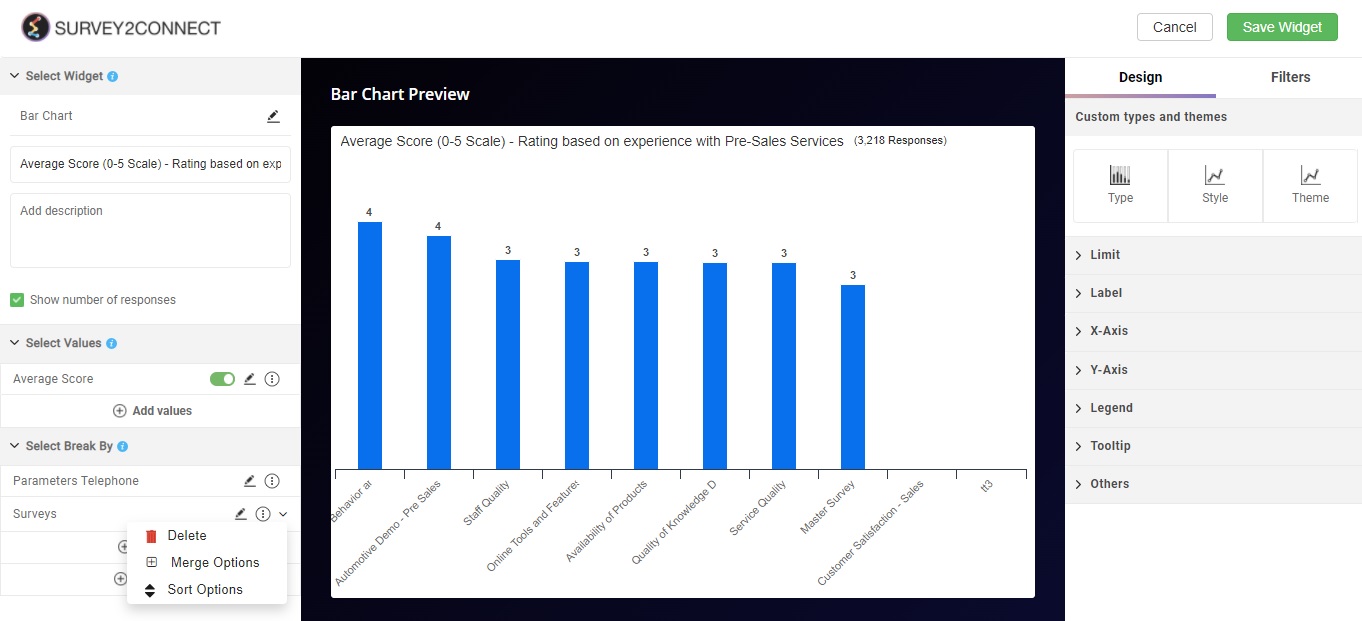
Delete: This option lets you delete the particular break by option
Merge Options: This option is only visible if you have applied break by on the basis of collector or survey. This option lets you merge the options of the break by with each other. The options get merged if the names are similar.
Sort: This option lets you sort and arranges the options of the break by. You can sort them on the basis of the alphabet in either ascending order.
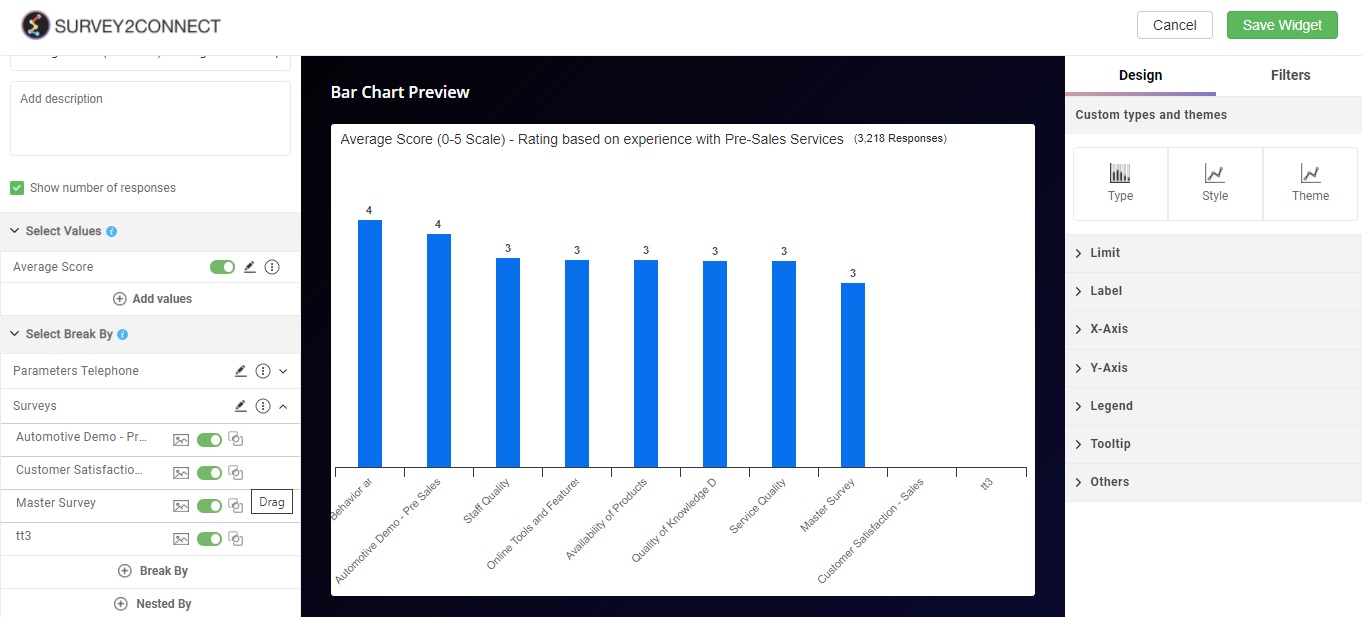
Once you have added a Break-by, you can see further customization options for each option of Break by
Image: You can edit the name of the option by clicking on this option. In the popup, you can change the name, make it bold or italic or add an image and link alongside the name.
Disable/Enable: You can disable or enable this particular option using this button
Drag: With the help of this button, you can move the individual option up and down the order.